
Stream health: which of the three frame problems you actually have
Good news: if your stream looks bad, it's almost always fixable, usually for free, and OBS already tells you which problem you have. You just have to know where to look. Nobody sticks around for a slideshow, so ten minutes here keeps the viewers you worked hard to earn.
The quick version
- Open Stats in OBS (View, then Stats). Three numbers tell you what's wrong, and all three should sit at zero.
- Frames missed due to rendering lag: your scene or your game is too heavy. Trim browser sources and cap your game's frame rate.
- Skipped frames due to encoding lag: your encoder can't keep up. Switch to your graphics card's encoder.
- Dropped frames (network): your upload choked. Set your bitrate to about 70 percent of your upload (Turk's rule of thumb), plug in a cable, and turn on Dynamic Bitrate.
- Looks fine to you, broken for viewers? Turn on Enhanced Broadcasting so they get quality options.
Start here: open Stats and read three numbers
In OBS, click View, then Stats.
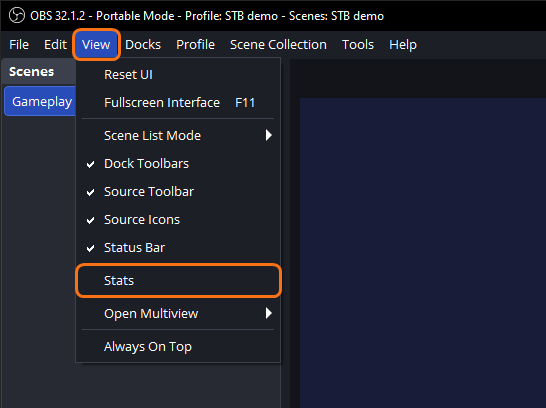
A little window opens with a bunch of numbers, and three of them matter:
- Dropped frames (network)
- Skipped frames due to encoding lag
- Frames missed due to rendering lag
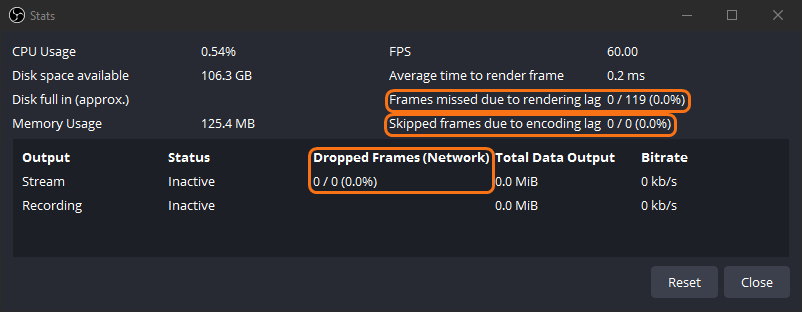
Each one counts frames that never made it to your viewers, and each points at a different part of your setup. All three should sit at zero, or close to it. A handful over a three hour stream is nothing to worry about, but hundreds in ten minutes means something's choking, and whichever number is climbing tells you what.
Leave the Stats window open while you stream (or during a short test stream) and watch which one moves.
The words you'll need
Streaming guides throw these words around like everyone already knows them. Here's what each one is, why it can go wrong, and what to set it to.
Bitrate. How much video data you send to Twitch every second, measured in kbps (kilobits per second). More bitrate, sharper picture. It shows most when things move fast. The catch is that every bit of it has to fit through your internet's upload. Ask for more than your connection can carry, and the extra gets thrown away, which shows up as dropped frames and a stuttering stream for everyone watching (and you won't see it on your end, more on that later). So your upload decides your bitrate first, and what looks nice comes second.
Upload. Your internet's outgoing speed. The big number your provider sells you is download. Upload is usually much smaller. It's free to test, with plenty of sites online. Whatever the maximum number is, set your bitrate lower so you're not stressing the modem out. Example: if it's 5 Mbps (= 5000 kbps), set your bitrate to 3500 kbps.
That gap matters because your upload isn't a fixed number. It wobbles through the night, and everything else on your network (Discord, your game's own traffic, someone in the house uploading photos) squeezes through the same pipe. Leave room, and the wobbles don't eat your stream.
Encoder. The part that squashes your screen into a video stream small enough to send. There are two kinds. Your processor can do it (that's x264 in OBS), or a dedicated chip on your graphics card can (NVENC on NVIDIA, AMF on AMD, QuickSync on Intel, VideoToolbox on a Mac). That chip is separate from the part of the card that runs your game, so it costs you almost no game performance, while x264 competes with your game for the same processor. If you have a graphics card encoder, use it (the encoder section below says which).
Rendering. OBS drawing the picture you stream: your game capture, camera, alerts and overlays, stacked into one frame, 60 times a second if you stream at 60 fps. That drawing happens on your graphics card, the same one running your game. Every source in your scene adds work, even ones just sitting there, and browser sources (alert boxes, chat boxes, web overlays) cost the most, because each one is a little web browser running inside OBS. When your game and OBS both want the graphics card at the same moment, OBS is the one that loses frames.
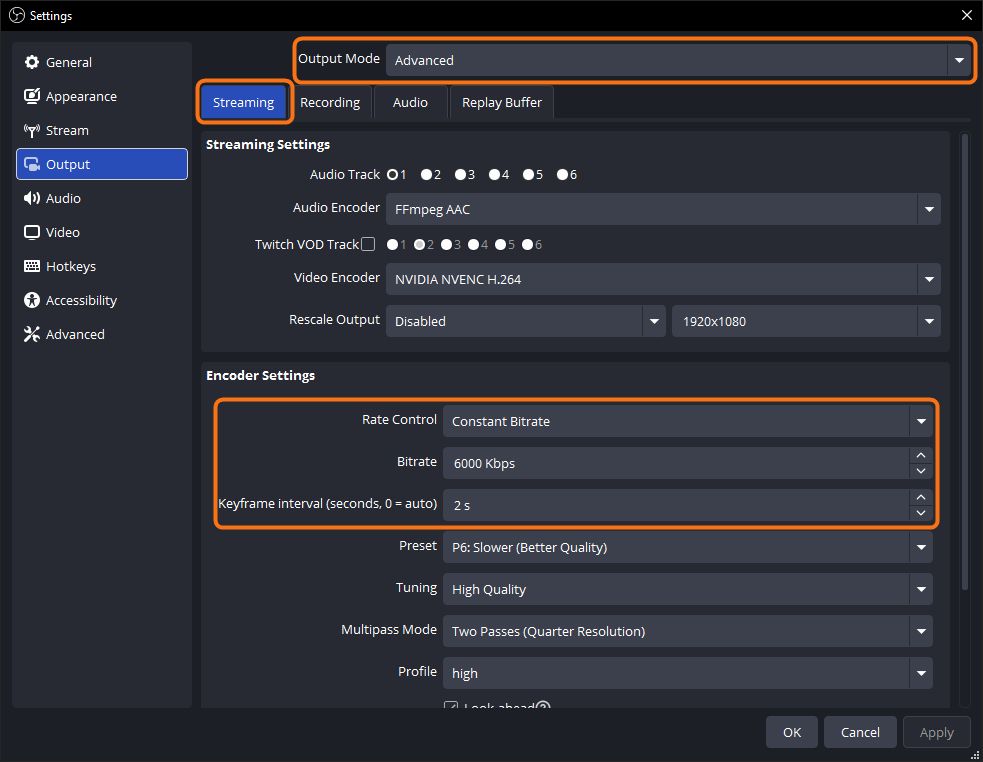
CBR (constant bitrate). Sends the same amount of data every second, instead of spiking whenever the screen gets busy. Twitch, Kick and YouTube all ask for it, because a steady stream is easier for your connection to keep up with and easier for them to handle. In OBS it's the Rate Control setting: pick CBR.
Keyframe interval. How often your stream sends a full picture, instead of just the changes since the last one. A viewer's player starts from a full picture, and Twitch asks for one every 2 seconds. In OBS that's Keyframe Interval. Set it to 2.
Preset. How hard x264 works on each frame, on a scale from ultrafast to veryslow. Slower presets look better at the same bitrate but need more processor. Start at veryfast, and only go slower if your processor has room to spare (Twitch notes that presets slower than Faster want six cores or more).
What each number means, and why it happens
Dropped frames (network): your upload choked. OBS built and encoded the frames fine, but your connection couldn't push them out, so they were thrown away. You saw nothing wrong, and viewers saw stutters, buffering or drop-outs. The usual reasons are a bitrate higher than your upload can hold, Wi-Fi dropping packets, something else on your network eating your upload, or the server you're sending to having a bad night. This is the only one of the three that lowering your bitrate fixes. OBS's own wording is that your connection "isn't stable or you can't keep up with your set bitrate", and that OBS being the cause is "extremely unlikely".
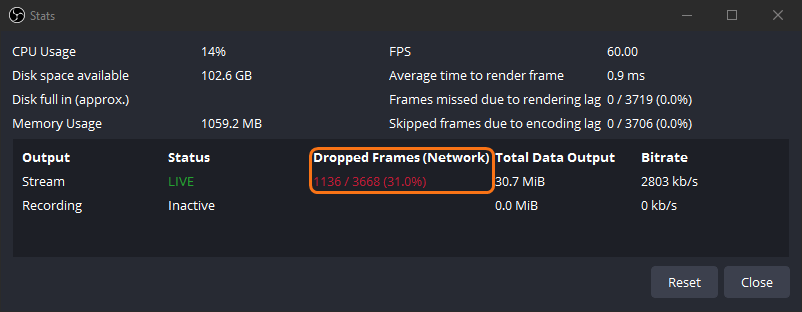
You don't even need the Stats window for this one, because OBS shows it in the bar along the bottom the whole time you're live.

Skipped frames due to encoding lag: your encoder ran out of time. At 60 fps the encoder gets about 16 milliseconds per frame. That's tight. If it can't finish squashing one before the next arrives, that frame gets skipped and never sent, and viewers see choppy video. The usual reasons are x264 on a preset too slow for your processor, or a resolution and frame rate that ask too much of it. Your internet has nothing to do with this one.
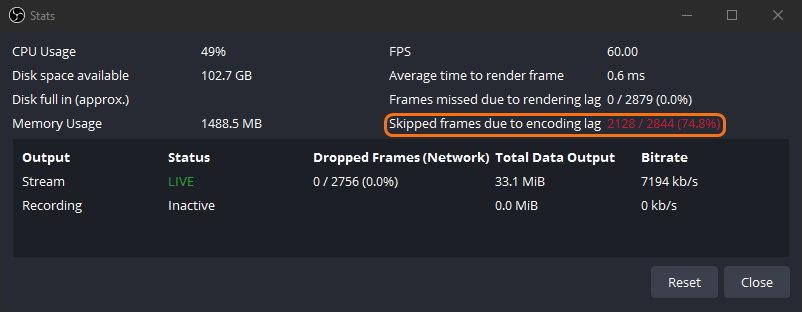
Frames missed due to rendering lag: OBS never drew the picture. Your graphics card couldn't build the frame in time, so there was nothing to encode or send. Usually your scene has too much in it, or your game is grabbing every bit of the graphics card (an uncapped game will happily run at 300 fps and leave OBS the scraps). Viewers see the same choppy video as encoding lag, which is why people mix these two up.
Check them in this order: rendering, encoding, network
That's backwards from how everyone asks, for two reasons. A rendering problem shows up in the encoding number too. If OBS never drew the frame, the encoder had nothing to work on, so it skips as well, and if you look at the encoder first you'll fix the wrong thing. And frames lost while rendering or encoding never reach your internet, so a clean network number can just mean the frames died before they got that far.
How to fix each one
Network:
- Lower your bitrate so it fits your upload with room to spare (the Upload example above). It's the one problem this fixes.
- Use ethernet. Wi-Fi is the usual reason a decent connection still drops frames (there's a section on why, right after this one). A cable is the biggest win most people aren't taking.
- Switch ingest server. That's the Twitch or Kick server you send to, picked in OBS settings. The closest one isn't always the healthiest one that night, so try another.
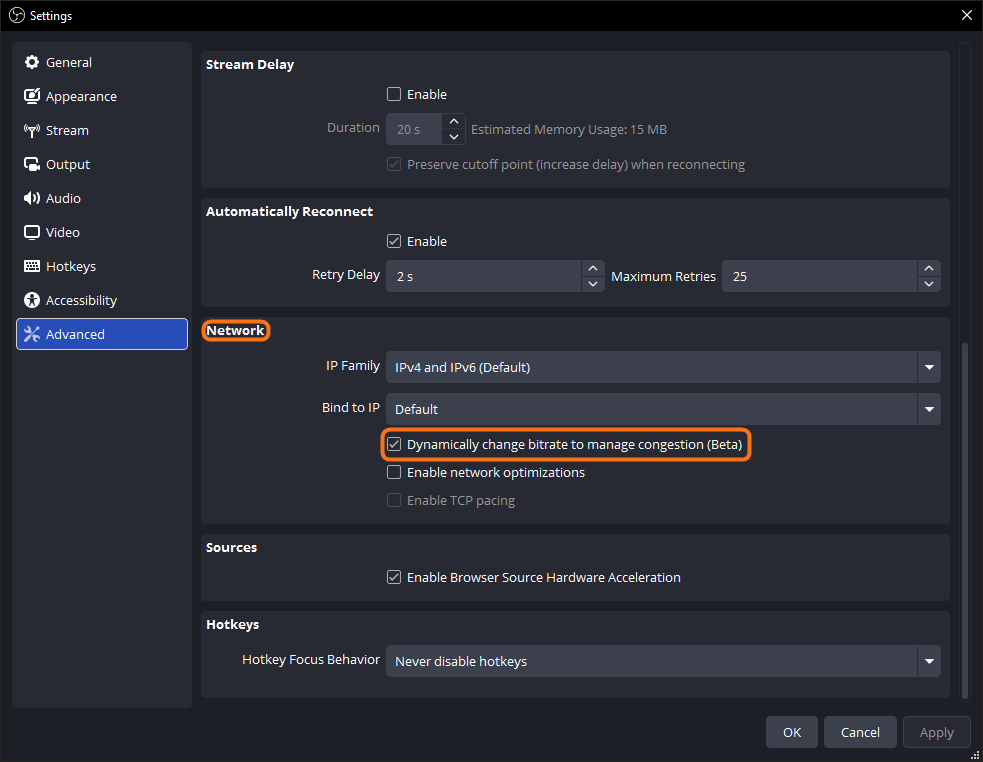
- Turn on Dynamic Bitrate in OBS's advanced settings. When your connection wobbles, it lowers quality for a few seconds instead of throwing frames away, then climbs back up.
- Check who else is online. A cloud backup or someone else in the house uploading video shares your upload with you.
Here's Dynamic Bitrate on the same squeezed connection as the dropped frames picture above.

Encoding:
- Switch to your graphics card's encoder if you're on x264. It's a separate chip, so it takes the load off your processor.
- Staying on x264? Use a faster preset. You trade a little sharpness for a lot of speed.
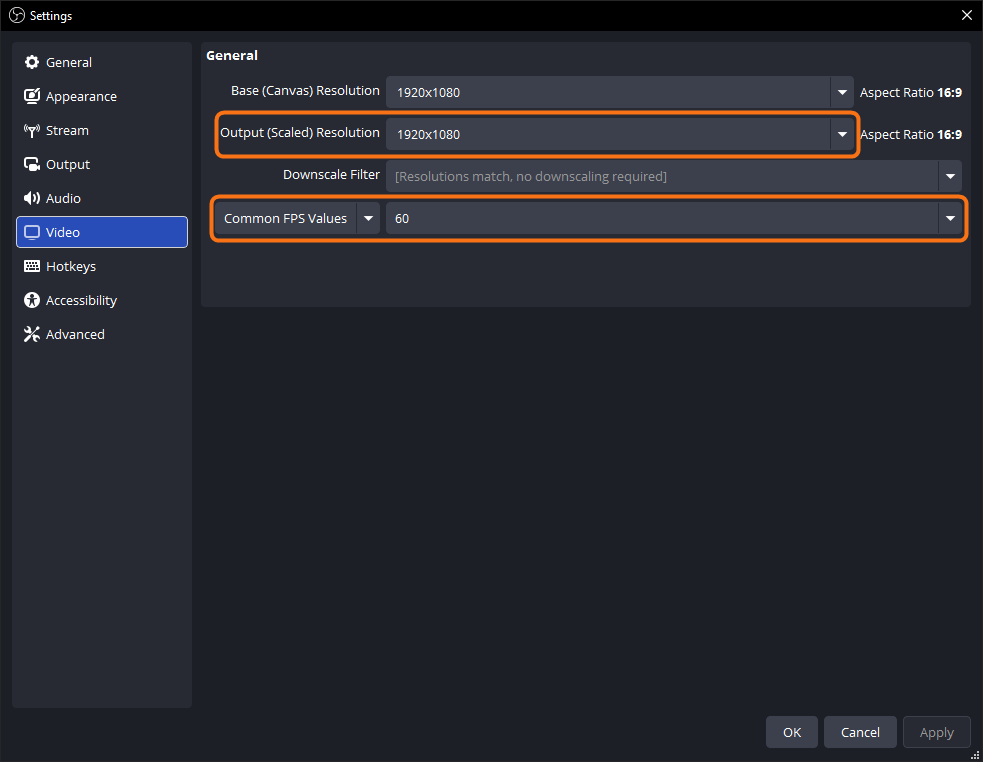
- Still skipping? Lower your resolution (1080p to 720p) or frame rate (60 to 30). Fewer pixels per second means less to squash.
Rendering:
- Trim your scene. Hide or remove sources you don't need, especially browser sources. An alert box sitting idle still costs you every frame.
- Cap your game's frame rate, in the game's settings or your graphics card's control panel. A game at 300 fps leaves OBS fighting for scraps, and capping it near your monitor's refresh rate leaves room for both.
- On Windows, run OBS as administrator. That lets OBS ask Windows to put its graphics work first.
The mistake almost everyone makes: answering a rendering problem by lowering bitrate. It changes nothing (the frames were gone before your internet got involved), so people decide their computer is too weak and go shopping. Hold your wallet, because a rendering fix is usually free.
Why a cable beats Wi-Fi
This one's Turk's, from years of streaming: the most common Wi-Fi problem is traffic. Your phone, the TV, a laptop and every router next door all share the same airwaves, and when they talk over each other, bits of your stream get lost and have to be sent again. A live stream can't wait around for that, so frames get dropped.
You'll find advice about switching your router to a different band or channel to dodge the crowd. Honestly, it's confusing. Every router hides those settings somewhere different, and picking the right one takes some real technical know-how.
A cable skips all of it. Plug your PC straight into your router and the airwaves stop mattering. No router near your setup? A long ethernet cable is cheap, and you can run it along the wall.
Setting up from scratch
- Test your upload. It's free, with plenty of sites online. Run it a couple of times, at the hour you usually stream if you can.
- Set your bitrate under it. About 70 percent of your upload is a good starting point: 5 Mbps of upload means 3500 kbps, and 10 Mbps means about 7000 (but don't go past what your platform recommends, below).
- Pick a resolution your bitrate can carry. If you land at 3500 kbps on Twitch, its numbers point at 720p and 30 fps. Squeezing 1080p60 through 3500 kbps looks blocky the moment anything moves.
- Set CBR and a 2 second keyframe interval.
- Pick your encoder from the next section.
- Do a short test stream and watch the Stats window. All three numbers near zero? You're set.
| platform | recommended bitrate | notes |
|---|---|---|
| Twitch | 6000 kbps at 1080p60, 4500 at 720p60, 3000 at 720p30 | a recommendation, with no hard limit published |
| Kick | up to 8000 kbps | stated as a supported ceiling |
| YouTube | around 12000 kbps at 1080p60 | they re-encode every stream |
Your account level doesn't change the bitrate you send. We looked on all three platforms, and there's no difference between a regular streamer, an Affiliate and a Partner in what you're told to upload. It does change what your viewers can choose, which is a separate and real thing (see the section below).
Which encoder to pick
By rough group, because a list of every graphics card is wrong within a year.
- NVIDIA RTX 20 or newer: NVENC. Twitch's own testing puts it level with x264 on the medium preset, which beats what most computers manage in software while also running a game.
- NVIDIA GTX 10 or older: NVENC still. It's closer to the veryfast preset in quality, and fine.
- AV1, a newer format that looks better at the same bitrate, needs an RTX 40, an AMD RX 7000 or an Intel Arc.
- Mac: VideoToolbox.
- Software x264: start at veryfast. Twitch notes that presets slower than Faster want a processor with six cores or more.
You don't need a second computer. That advice is ten years old, from before graphics card encoders got good, and people still repeat it.
We couldn't find a solid source ranking older AMD or Intel built-in encoders against the rest. Most people put them below NVENC. Nobody publishes numbers, so treat that as a rule of thumb.
It looks fine to you and broken to everyone else
You're both telling the truth. Your preview never goes over the internet. It's drawn on your own machine, so everything that happens after your encoder is invisible to you.
Most likely first:
- You're dropping frames and can't see it. Check the network number. Twitch describes what viewers get as "lag for everyone... buffering, and stream disconnections".
- Your viewers are stuck on your exact quality. Your channel offers nothing else. Open your own stream and click the settings gear. If the only entries are Auto and Source, you have no other qualities. Auto means "pick for me", and there's nothing there for it to pick from. A channel that does have them lists real numbers: 720p, 480p, 360p. So a viewer on a weak connection has to pull your full bitrate or nothing, and they buffer.
- It's their end, and not yours to fix.
Number two is where your account level decides things, and it's the part people get told wrong. Twitch guarantees those extra qualities to Partners on every broadcast. Everyone else gets them "based on availability", which often means none, and that's why a non-Affiliate channel usually shows nothing but Auto and Source.
The old advice for number two was to keep your bitrate low so viewers on weak connections could cope. That was right for non-Partners before 2024 and is out of date now. Enhanced Broadcasting (OBS 30.2 or newer, set to Auto) makes those quality options from your own graphics card, for anyone. Turn it on, and you don't have to lower quality for everybody.
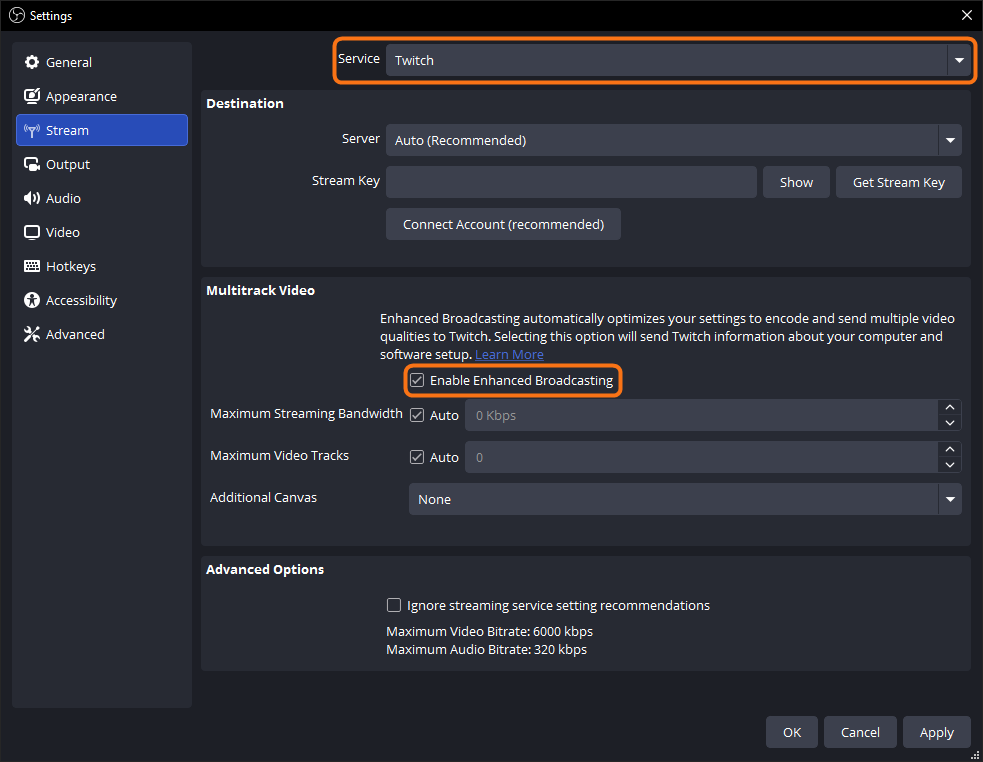
Twitch's June 2026 FAQ covers the rest: Partners always get quality options, non-Partners get them "based on availability", Enhanced Broadcasting is open to anyone with new enough software, and server-side help for Dual Format and 2K is limited to "Partners and select Affiliates".
What we're sure about, and what we aren't
Most of what we write about is arguable. This isn't, so where something is fixed, we say it flat.
Some of it is physics. Your connection can't carry more than it can carry, and an encoder that takes longer than a frame takes to arrive has to drop something.
The platform numbers are softer, and the difference matters. Twitch's 6000 is a recommendation: their guidelines say the numbers "have been tested to optimize video quality without wasting bandwidth", and we found no Twitch page setting a hard limit. Kick's 8000 is a ceiling they state. Twitch's quality options for Partners are a promise, and for everyone else they're availability, which is a different thing.
One page to be careful with. Twitch's own Broadcasting Guidelines is the most out of date first-party page in this topic. Its encoder comparisons are several graphics card generations old, it doesn't mention AV1, and it says nothing about Enhanced Broadcasting on the page that most needs to. The numbers on it are still the official recommendation, so we use it for those and Twitch's newer FAQ for anything about quality options.
Where this comes from
The three counters and OBS's wording come from OBS's own help pages, forum and wiki. The bitrate, encoder and quality-option details come from Twitch's Broadcasting Guidelines (including its encoder testing), its Enhanced Broadcasting pages and June 2026 FAQ, Kick's and YouTube's help pages, NVIDIA's broadcasting guide and OBS's release notes.
Some parts are ours. The 70 percent upload rule is Turk's rule of thumb from years of streaming, and no platform publishes one. So is the cable section. Wi-Fi traffic being the most common cause comes from his experience, and nobody has measured it.
The screenshots come from a test copy of OBS 32.1.2 on our own PC. The problem pictures are real. We caused each one on purpose (a connection limited to 4000 kbps, and an x264 preset too slow for the processor) and captured what OBS showed. The reasons things go wrong (Wi-Fi, other traffic on your network, an uncapped game) are general how-it-works explanations that nobody has measured. Checking the numbers in rendering, encoding, network order follows from how the pipeline works. No source spells out an order. And the ranking of viewer-side causes comes from the mechanics. Nobody publishes how often each one happens.
What we looked for and couldn't find
We couldn't find one official OBS page defining all three Stats numbers together (the labels are the same everywhere, but OBS's own help splits them across two pages), any published hard bitrate cap for Twitch, or any bitrate difference by account level on any platform. Kick says nothing about whether it re-encodes streams, nobody publishes an official "acceptable percentage" for any of the three numbers, and we found no quality benchmarks for older AMD and Intel built-in encoders. Twitch's old encoding page for developers wouldn't load.
TL;DR: open View, then Stats. Rendering lag means trim your scene and cap your game, encoding lag means switch to your graphics card's encoder, and dropped frames means set your bitrate around 70 percent of your upload and get on ethernet. Turn on Enhanced Broadcasting so viewers get quality options.
How well supported this is
Several independent sources agreed
the three-counter mapping (network, encoder, renderer) holds across the OBS knowledge base, the OBS forum explainer, and every UI label; nothing contradicts it anywhere
CBR and 2 second keyframe intervals are recommended identically by Twitch, Kick and YouTube
dropped frames are a connection matter, stated by OBS ('extremely unlikely' to be OBS) and implied by all three platforms' stable-connection framing
hardware encoders on current GPUs are the default answer for gaming-plus-streaming on one PC, agreed by Twitch's guidance, NVIDIA's guide, and OBS's encoding article
still current as of this run: the Broadcasting Guidelines numbers, the Kick 8000 figure, the YouTube ranges, and the transcoding FAQ (modified 2026-06-17)
This rests on a single voice
the NVENC-equals-x264-medium parity claim is Twitch's sentence, widely repeated but originating in one place
the render-lag-starves-the-encoder coupling and the frames-lost-early-never-reach-the-network detail come from one forum explainer by experienced members, not staff documentation
the AV1 efficiency percentages are NVIDIA's own figures
Sources
the network counter's meaning ('your connection to remote server isn't stable or you can't keep up with your set bitrate'), 'It is extremely unlikely for OBS Studio to cause dropped frames', and the ordered fixes: different server, lower bitrate, different service, network optimizations, dynamic bitrate, wired over WiFi
the render-side causes (GPU overload, uncapped game framerates, browser sources and filters, overloaded scenes) and fixes: cap the game's framerate, run OBS as administrator so it can 'ask Windows to reserve some GPU capacity', reduce sources and filters
What it misses: does not enumerate encoders or presets, and does not name the Stats counters
the three-counter mapping confirmed in one place, with two load-bearing refinements: rendering lag can cause encoding lag because the encoder 'is not fed frames fast enough', and frames lost before transmission never appear in the network counter
What it misses: forum answers from experienced members (FerretBomb, Lawrence_SoCal), not staff-authored documentation; no acceptable-percentage thresholds given
Twitch's recommended settings (6000 kbps 1080p60, 4500 at 1080p30 and 720p60, 3000 at 720p30, CBR, 2 second keyframes), 'it's always better to have a stable stream than to push for a higher video quality', the NVENC generation comparison (Turing 'on par with x264 medium', Pascal/Kepler 'similar with veryfast/faster'), 'presets above Faster require CPUs with 6+ cores', and the broadcast starvation description
What it misses: visibly dated: Turing-era language, no AV1, no HEVC, no mention of Enhanced Broadcasting; its numbers remain the published recommendation anyway
Enhanced Broadcasting: OBS 30.2 or newer, automatic stream configuration ('a server-side algorithm then returns the best possible configuration'), multiple client-side encodes so 'your viewers always have different quality options', and that it is the technology behind Dual Format and 2K
the reason the tiers exist, in Twitch's own words: transcodes are what let Twitch 'adapt a viewer's experience depending on their bandwidth', and historically 'we've only been able to guarantee them to Partners'. Enhanced Broadcasting moves the extra encodes onto the streamer's own machine, which is why it is open to anyone with compatible software rather than tied to status
What it misses: written at beta launch, so it describes a sign-up flow that has since become a normal setting, and it does not state which resolutions viewers end up with
the status question settled in Twitch's words (modified 2026-06-17): 'Partners receive standard transcodes on all broadcasts. Non-partnered channels receive standard transcodes based on availability', Enhanced Broadcasting 'available to anyone using compatible software', Dual Format and 2K server-side support 'for Partners and select Affiliates', and 'a stable internet connection is the most important factor in delivering a high-quality stream'
YouTube Live encoder settings: about 12000 kbps recommended at 1080p60, 6000 at 720p60, ranges rather than caps, keyframe 'Recommended 2 seconds... Do not exceed 4', and 'YouTube will automatically transcode your live stream' for every stream
'KICK supports a bitrate of up to 8,000 kbps', CBR, 2 second keyframes, x264 veryfast or NVENC P6 presets, 1000 to 8000 ranges; verified against the live page this run
What it misses: recommends x264 tune zerolatency, which trades quality for latency and is a questionable default for a quality-focused stream; publishes nothing about transcode availability, so viewer-side quality options on Kick are unstated
AV1 availability by generation (RTX 40 and 50 yes, RTX 20 and 30 no) and the codec efficiency ladder (HEVC about 1.35x, AV1 about 1.43x the compression of H.264), plus NVENC preset P6 as the quality default
What it misses: vendor marketing; frames everything as efficiency gains and avoids benchmarked comparisons against x264
the hardware-encoder support matrix by release: AMD AV1 'for the RX7000 series', Intel AV1 'for Arc GPUs', Intel HEVC on Windows, native HEVC on macOS
We also read and rejected 1 source for this article, mostly for unsourced figures or for selling the thing they were assessing.
What we changed
only Partners get quality options, so everyone else should hold bitrate down for their viewers' sake
Enhanced Broadcasting sends multiple qualities from the streamer's own GPU, available to anyone on OBS 30.2 or newer, with server-side transcodes still guaranteed to Partners only
OBS 30.2 shipped Enhanced Broadcasting support in July 2024; the FAQ documents both the old Partner guarantee (which still stands) and the new anyone-path, so it grounds both sides; month given because the feature rolled out rather than switching on a single day
x264 medium beats hardware encoders, so serious streaming means CPU encoding or a second PC
NVENC on RTX 20 series and newer produces quality on par with x264 medium, per Twitch's own guidance, and current AMD, Intel and Apple hardware encoders make single-PC streaming the default
the Turing NVENC redesign shipped with the RTX 20 series in September 2018; no wasSourceUrl because the old claim was distributed community practice rather than one citable document, and the month is the hardware launch
Want this while you stream?
A.N.N.A is the SuperTurkBot assistant. She reads everything on this page and answers questions in your own dashboard, about your own channel, with your numbers in front of her. See SuperTurkBot.